```{r}
sum(1:10)
```[1] 55Code cells are one of Quarto’s most powerful features: they allow you to write code that Quarto executes during rendering, embedding the results in the final document. This chapter explains how to:
As you saw in Section 4.3.1, plain Markdown code blocks display code without executing it. Quarto code cells go a step further: they can execute code and embed its output directly in the rendered document. Like plain Markdown code blocks, an R code cell starts and ends with three backticks. However, the opening backticks are immediately followed by {r}, for example:
For R code cells, use the following syntax:
```{r}

```
```{r}
sum(1:10)
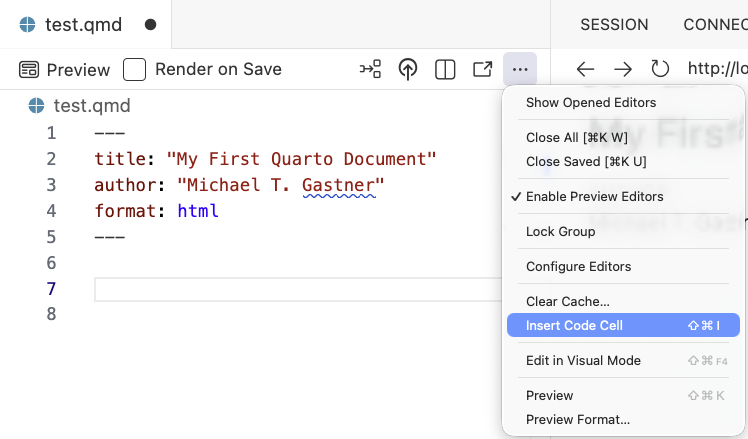
```[1] 55You can create an empty R code cell by clicking the ellipsis menu (...) in the top right corner of the editor and choosing “Insert Code Cell” (Figure 5.1). Alternatively, you can use the keyboard shortcut . Then select r from the dropdown.
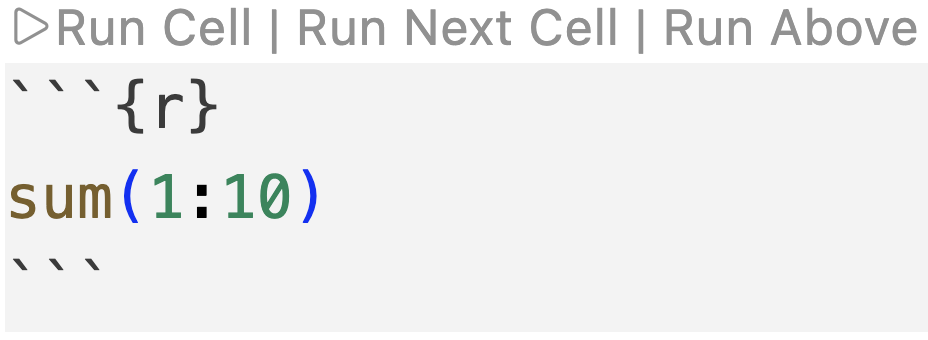
Positron offers a convenient way to execute code cells without rendering the entire document. Above each code cell, there is a “Run Cell” button, as shown in Figure 5.2. Clicking this button executes the current code cell and displays its output in the console below the editor. You can achieve the same effect using the keyboard shortcut .
Use Positron’s run buttons to preview the output of code cells without rendering the whole document.
Keep in mind that modifying one code cell does not automatically update the execution state of other cells. Instead, you may have to run all preceding code cells to ensure that the latest input variables are available. To execute all code cells above the current one, click “Run Above” in the editor (Figure 5.2). To execute the following code cell, click “Run Next Cell”.
Cell labels let you refer to code cells by user-defined names. Labeling every code cell is advisable because it simplifies debugging and enables automatic code reuse.
For instance, consider the following code cell, labeled purposefully-wrong because it intentionally lacks a closing parenthesis:
Use #| label: ... to label a code cell.
```{r}
#| label: purposefully-wrong
sum(1:10
```
When you render the code, Quarto displays an error message that includes the line numbers and label of the faulty cell. This feature simplifies locating the code responsible for the error:
Quitting from test.qmd:10-13 [purposefully-wrong]Labels also allow you to reuse code from one cell in another, reducing the need for code duplication. For example, let us fix the previous code cell and label it sum-from-1-to-10:
```{r}
#| label: sum-from-1-to-10
sum(1:10)
```
[1] 55The following code cell reuses the previous one because they share the same label:
```{r}
#| label: sum-from-1-to-10
```
The latest code cell renders as follows:
sum(1:10)[1] 55Note that Quarto throws an error message if you attempt to modify the code in a reused cell:
```{r}
#| label: sum-from-1-to-10

1 + 2 + 3 + 4 + 5 + 6 + 7 + 8 + 9 + 10
```
Error in parse_block(g[-1], g[1], params.src, markdown_mode) :
Duplicate chunk label 'sum-from-1-to-10', which has been used for the chunk:
sum(1:10)Execution options control the behavior of code cells. For example, you use execution options to determine whether the code is evaluated or displayed in the rendered document. Specify these options at the top of a code cell, immediately after the label, with each option on a separate line preceded by #| and a space.
Execution options are directives for the rendering process of code cells.
This section introduces some of the most frequently used execution options: eval (Section 5.4.1), echo (Section 5.4.2), error, message, and warning (Section 5.4.3), as well as include (Section 5.4.4). You can set execution options for individual code cells or, as shown in Section 5.4.5, for all code cells in the document.
In most Quarto output formats, code cells are evaluated by default, and the results are rendered in the document. However, you can prevent a code cell from being evaluated by setting the eval: false execution option. This option is useful, for example, if you want to demonstrate a deliberately wrong code cell:
Use #| eval: false to prevent a code cell from being evaluated.
```{r}
#| label: purposefully-wrong-again
#| eval: false
"Hello, world!" + 1
```
Without eval: false, this code cell would cause an error, and the rendering process would be aborted:
Error in `"Hello, world!" + 1`:
! non-numeric argument to binary operatorBy default, code cells are rendered as code blocks in the output document. However, you can hide the code cell by setting the echo: false execution option, which is useful when you want to focus the reader’s attention on the output rather than the source code. The following example displays the numbers from 1 to 10 without showing the code 1:10 that generates them:
Use #| echo: false to prevent a code cell from being displayed in the rendered document.
```{r}
#| label: one-to-ten
#| echo: false
1:10
```
[1] 1 2 3 4 5 6 7 8 9 10Besides false and the true default value, the echo option accepts the value fenced, which displays not only the code but also the entire code cell syntax in the rendered document. For example, consider the following code cell, where the echo option is set to fenced:
Use #| echo: fenced to display the entire code cell syntax in the rendered document.
```{r}
#| label: fence-demo
#| echo: fenced
#| eval: false
1 + 1
```
This code cell is rendered below. Note that, while the echo option itself is not displayed, all other features of the code cell are visible, including the label, other execution options, and the triple backticks:
```{r}
#| label: fence-demo
#| eval: false
1 + 1
```By default, Quarto aborts rendering when a code cell generates an error. However, it is sometimes desirable to show the error message in the rendered document and continue rendering. In such cases, use the error: true execution option. For example, the following code cell generates and displays an error but allows the rendering process to continue:
Use #| error: true to display any potential error message in the rendered document and continue rendering.
```{r}
#| label: purposefully-wrong-yet-again
#| error: true
"Hello, world!" + 1
```
Error in `"Hello, world!" + 1`:
! non-numeric argument to binary operatorWhile errors indicate that code has failed, messages communicate non-critical information—for example, the progress of a long-running calculation—without implying a problem. The following code generates and displays a message on every iteration of a for loop:
```{r}
#| label: message-demo
max_iter <- 3
for (i in 1:max_iter) {
  message("Performing iteration ", i, " out of ", max_iter, ".")
}
```
Often, such messages are irrelevant to the reader and should not be included in the rendered document. In such cases, use message: false:
Use #| message: false to prevent any potential code messages from being displayed in the rendered document.
```{r}
#| label: message-demo
#| message: false
max_iter <- 3
for (i in 1:max_iter) {
  message("Performing iteration ", i, " out of ", max_iter, ".")
}
```
Warnings occupy the middle ground between errors and non-error messages. Like non-error messages, warnings do not abort the rendering process. However, like errors, warnings indicate a problem with the code. For instance, the following code cell generates a warning because the square root of a negative number is not a real number. By the way, NaN in the output stands for “Not a Number”:
You can suppress warnings using the warning: false execution option. However, I generally advise against suppressing warnings. Instead, fix the code so that it does not generate warnings in the first place. For instance, if a mathematical operation produces NaN, investigate the cause; it may reveal a more fundamental problem with the underlying data.
The warning: false execution option suppresses warnings, but use it with caution.
Sometimes, it is useful to execute a code cell without displaying the code, output, messages, or warnings. An example is the initial code cell in a QMD file, commonly labeled setup, which performs housekeeping tasks of little interest to the reader, such as loading packages, establishing database connections, or seeding a random number generator. In such cases, use the include: false execution option. For instance, the following code cell, which loads the tidyverse suite of R packages, is executed but not included in the rendered document:
Use #| include: false to execute a code cell without displaying the code, its output, or any messages or warnings.
```{r}
#| label: setup
#| include: false
library(tidyverse)
```In addition to configuring execution options on a per-cell basis, you can set them for the entire document using the execute key in the YAML header. For instance, the following YAML header sets the echo option to fenced and the error option to true for all code cells in the document:
---
title: "Document-Wide Execution Options"
execute:
  echo: fenced
  error: true
---
Use the execute key in the YAML header to define document-wide execution options.
If both a document-wide and a cell-level execution option are specified, the cell-level option takes precedence.
This chapter has introduced code cells and the most common execution options. Table 5.1 summarizes these options for quick reference. You will encounter additional execution options for rendering figures in Section 8.3. For more execution options, consult the Quarto documentation.
| Option | Values | Description |
|---|---|---|
eval |
true, false
|
Execute the code cell? |
echo |
true, false, fenced
|
Display the source code in the rendered document? |
error |
true, false
|
Display error messages and continue rendering? |
message |
true, false
|
Display messages in the rendered document? |
warning |
true, false
|
Display warnings in the rendered document? |
include |
true, false
|
Include the code, output, messages, and warnings in the rendered document? |
The remaining chapters of this book focus on data visualization using R. The next chapter introduces R itself, covering the language fundamentals you will need throughout the rest of the book.