| Markdown | Rendered |
|---|---|
#, ##, … ######
|
Top-level, 2nd-level, …, 6th-level heading |
| Blank line | Paragraph break |
Two spaces or one backslash (\) at the end of a line |
Line break |
\ followed by space not at the end of a line |
Non-breaking space |
* One item* Another item - One subitem - Another subitem + One sub-subitem + Another sub-subitem
|
Unordered list |
1. First item2. Second item i. i-th item ii. ii-th item a. a-th item b. b-th item
|
Ordered list |
Term 1: Description 1Term 2: Description 2
|
Description list |
*Italics* or _Italics_
|
Italics |
**Bold** or __Bold__
|
Bold |
***Bold italics*** or ___Bold italics___
|
Bold italics |
Sub~script~ |
Subscript |
Super^script^ |
Superscript |
Text^[Footnote text] |
Footnote |
~~Strikethrough~~ |
|
<https://google.com/> |
https://google.com/ |
[Google Search](https://google.com/) |
Google Search |
```rsum(1:10)```
|
Code block, not executed |
`sum(1:10)` |
Inline code, not executed |
`{r} sum(1:10)` |
Inline code, executed |
\\, \`, \*, \_, \{, \}, \[, \],\(, \), \#, \+, \-, \., and \!
|
Backslash escape for verbatim output of special characters |
‑ |
Raw HTML (e.g., non-breaking hyphen) |
<!-- This is a comment. --> |
Comment |
4 Markdown
You are probably familiar with word processors, such as Microsoft Word or Google Docs, which operate on the principle of “What You See Is What You Get” (WYSIWYG). For instance, if you want to display text in boldface using word processing software, you need to highlight the text and select a bold font weight from the toolbar or a formatting menu. The text then appears in bold on the screen. The WYSIWYG method provides immediate visual feedback while you are editing. However, when the file is opened in another word processor or operating system, it may not appear identical because fonts, layout engines, and software defaults can differ.
Markup languages offer an alternative to WYSIWYG editing. In a markup language, users insert special character sequences into the text to indicate how the text should be formatted. As a result, the source text does not immediately resemble the rendered document because the markup symbols appear alongside the prose. The advantage is that the formatting instructions are explicit and can be interpreted consistently by different software. One example is the HyperText Markup Language (HTML), used for writing websites. When a browser opens an HTML document, it interprets the markup and displays the formatted web page.
Markdown is a markup language that was developed by Gruber (2004) and Swartz (2004) to be simple to learn and easy to read. Different applications have adopted Markdown, albeit with minor variations. Quarto adopts the Pandoc Markdown rules (MacFarlane, 2024) for rendering text and adds features for including executable computer code, as the next chapter will show.
Markdown uses special character sequences to indicate how text should be formatted.
This chapter introduces you to the basic features of Markdown:
- Section 4.1 explains how to format blocks of text, such as sections, paragraphs, and lists.
- Section 4.2 demonstrates how to add formatting within a block of text, for example, to emphasize key words.
- Section 4.3 introduces the basics of verbatim code rendering, either as a separate block or within text.
- Section 4.4 teaches how to insert characters that Markdown would otherwise interpret as markup and how to include raw HTML as a last resort when no native Markdown solution is available.
- Section 4.5 shows how to embed image files and create cross-referenceable figures.
4.1 Text Blocks
A text block is a sequence of words treated as a unit. This section covers four important types of text blocks: section headings (Section 4.1.1), paragraphs (Section 4.1.2), lists (Section 4.1.3), and block quotes (Section 4.1.4).
4.1.1 Section Headings
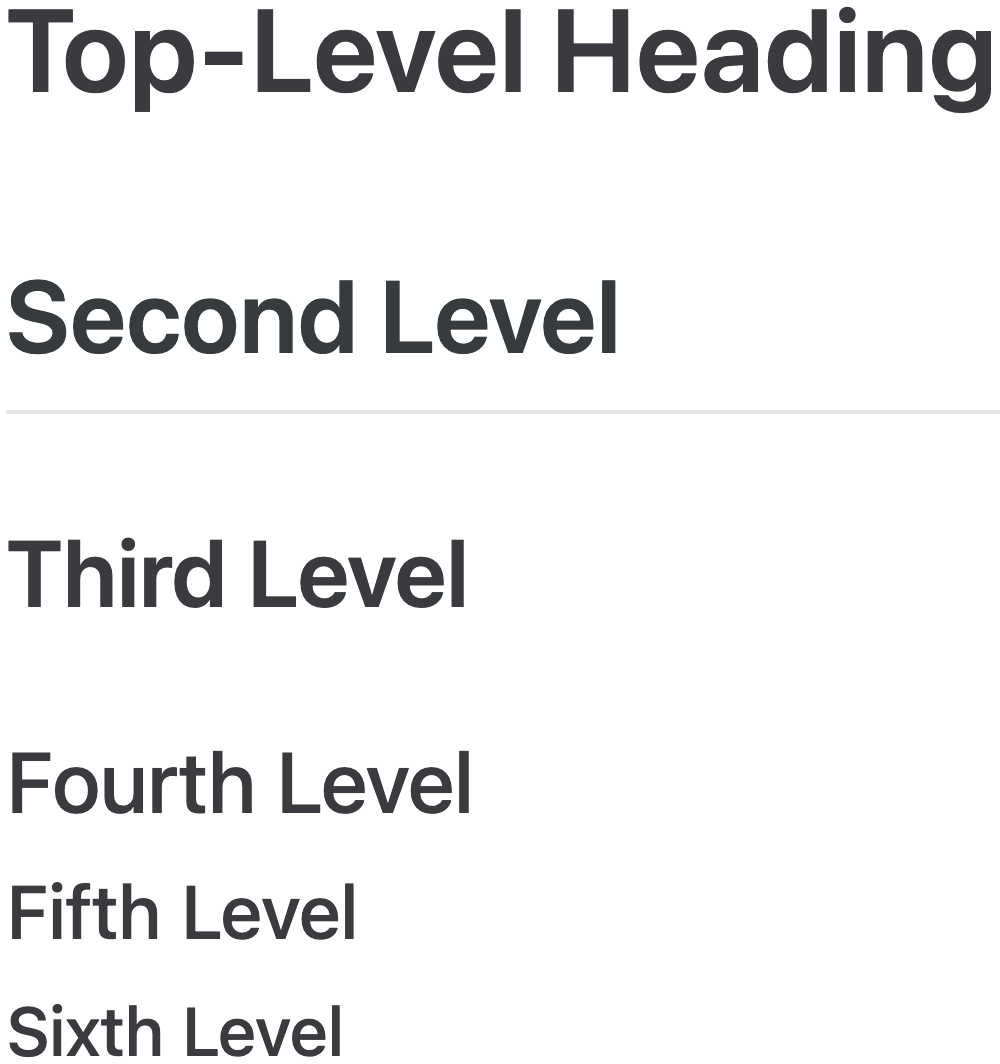
Most Markdown prose is rendered literally as it appears in the source file, with a few exceptions. For instance, section headings begin with at least one hash symbol (#) followed by a space; however, neither the hash symbols nor the space appear in the rendered document. Instead, the number of hash symbols (between 1 and 6) determines the level of the heading and, consequently, the appearance of the title in the rendered document, as demonstrated in the following example and in Figure 4.1:
# Top-Level Heading
## Second Level
### Third Level
#### Fourth Level
##### Fifth Level
###### Sixth Level
Use # for a first-level heading, ## for a second-level heading, and so on.
4.1.2 Paragraph Breaks and Forced Line Breaks
Line breaks in a Markdown file do not necessarily translate into line breaks in the output. To indicate a break between paragraphs, insert a blank line in the Markdown text.
Use a blank line to separate paragraphs.
To indicate a line break inside a paragraph, you can end
the line with two spaces. Alternatively, you can enforce a line break
using a backslash.
Here is the previous paragraph written in Markdown. Note that the first line contains two invisible spaces after end:
At the end of a line in the QMD file, use two spaces or a backslash (\) to enforce a line break.
To indicate a line break inside a paragraph, you can end
the line with two spaces. Alternatively, you can enforce a line break\
using a backslash.
To prevent Markdown from inserting a line break at a space between words, place a backslash before the space (e.g., 100\ km).
A backslash, followed by a space, in Markdown inserts a non-breaking space in the rendered document.
4.1.3 Typesetting Lists
Lists provide a convenient way to organize information. Markdown supports three common types of lists, each with its own syntax: unordered lists (Section 4.1.3.1), ordered lists (Section 4.1.3.2), and description lists (Section 4.1.3.3). Use an unordered list unless the items follow a natural sequence; in that case, use an ordered list. Description lists present terms together with their definitions, for example, inside a glossary.
4.1.3.1 Unordered Lists
To produce an unordered list, place either an asterisk (
*), a plus sign (+), or a hyphen (-) as a delimiter before each list item.Leave a blank line before starting a list.
Each item must begin on a new line.
-
Maintain at least one space between the delimiter and the text.
- Indent a nested list so that its marker aligns with the first character of the parent list item’s text.
- As a matter of style, choose different delimiters for the inner and outer lists, for instance:
-
*for the outer list. -
+for the sublist. -
-for the sub-sublist.
-
-
You can insert a paragraph break in a list item.
Simply indent the new paragraph as much as the first line of the list item.
Afterward, you can continue with the next list item.
Use *, -, or + to delimit items in an unordered list.
Here is the Markdown code for the unordered list above:
* To produce an unordered list, place either an asterisk (`*`), a
  plus sign (`+`), or a hyphen (`-`) as a delimiter before each list
  item.
* Leave a blank line before starting a list.
* Each item must begin on a new line.
* Maintain at least one space between the delimiter and the text.
  + Indent a nested list so that its marker aligns with the first
    character of the parent list item’s text.
  + As a matter of style, choose different delimiters for the inner
    and outer lists, for instance:
    - `*` for the outer list.
    - `+` for the sublist.
    - `-` for the sub-sublist.
* You can insert a paragraph break in a list item.

  Simply indent the new paragraph as much as the first line of the
  list item.
* Afterward, you can continue with the next list item.
4.1.3.2 Ordered Lists
- To start an ordered list, place one of the following delimiters at the beginning of a new line. Each delimiter ends with a dot and must be followed by at least one space:
- Arabic numerals (e.g.,
1.) - Roman numerals (e.g.,
i.orI.) - Letters (e.g.,
a.orA.)
1.,i.,I.,a.orA.. For example, to start counting from 6, use6.as the first delimiter in the list. - Arabic numerals (e.g.,
- Leave a blank line before the first list item.
- It is possible to nest an unordered or ordered list inside an ordered list.
- Simply indent the lists consistently.
- Indent as deeply as needed to keep the delimiters of the inner list flush with the text in the outer list. Take a careful look at the indentation pattern in the source code below.
- Markdown automatically continues the numbering or lettering of the list items. Examine the source code for this list: the delimiter appears as
1.in the source code but as4.in the output. - This feature is useful in the following circumstances:
- You have lost track of the count.
- You add more items in the middle of the list, and you do not want to update all following delimiters.
Items in an ordered list can be delimited by Arabic or Roman numerals or letters, each followed by a dot and at least one space.
The following Markdown code renders the ordered list above:
1. To start an ordered list, place one of the following delimiters
   at the beginning of a new line. Each delimiter ends with a dot and
   must be followed by at least one space:
   * Arabic numerals (e.g., `1.`)
   * Roman numerals (e.g., `i.` or `I.`)
   * Letters (e.g., `a.` or `A.`)

   At the same level of nestedness, all delimiters must be of the same
   type (e.g., all of them may be Arabic numerals). However, you do not
   need to start counting from `1.`, `i.`, `I.`, `a.` or `A.`. For
   example, to start counting from 6, use `6.` as the first delimiter
   in the list.
2. Leave a blank line before the first list item.
3. It is possible to nest an unordered or ordered list inside an
   ordered list.
   a. Simply indent the lists consistently.
   b. Indent as deeply as needed to keep the delimiters of the inner
      list flush with the text in the outer list. Take a careful look
      at the indentation pattern in the source code below.
1. Markdown automatically continues the numbering or lettering of the
   list items. Examine the source code for this list: the delimiter
   appears as `1.` in the source code but as `4.` in the output.
10. This feature is useful in the following circumstances:
    i. You have lost track of the count.
    i. You add more items in the middle of the list, and you do not
       want to update all following delimiters.
Furthermore, you can
- continue the numbering
of a list after
- an interruption by
- using the
(@)delimiter.
This example uses the following Markdown code:
Furthermore, you can

(@) continue the numbering

of a list after

(@) an interruption by
(@) using the `(@)` delimiter.
4.1.3.3 Description Lists
To start a description list, insert a blank line before the term to be described. Place the description on the next line, beginning with a colon (:) that is followed by at least one space. Here is an example of a description list:
- Inner join
- A type of join that returns only rows that have matching keys in both data frames.
- Left join
- A type of join that returns all rows from the left data frame and the matching rows from the right data frame.
- Right join
- A type of join that returns all rows from the right data frame and the matching rows from the left data frame.
- Full outer join
- A type of join that returns all rows from both data frames.
Here is the Markdown code for the description list above:
Use a colon (:), followed by at least one space, to delimit the definition of a term in a description list.
To start a description list, insert a blank line before the term to
be described. Place the description on the next line, beginning with a
colon (`:`) that is followed by at least one space. Here is an example
of a description list:

Inner join
: A type of join that returns only rows that have matching keys in both
  data frames.

Left join
: A type of join that returns all rows from the left data frame and the
  matching rows from the right data frame.

Right join
: A type of join that returns all rows from the right data frame and
  the matching rows from the left data frame.

Full outer join
: A type of join that returns all rows from both data frames.
4.1.4 Block Quotes
You can produce a block quote by placing a greater-than sign (>) in front of each line of the quote, as the following Markdown code shows:
Use > followed by a space to mark a block quote.
> I observed that he sat frequently for half an hour on end, with
> knitted brows and an abstracted air, but he swept the matter away
> with a wave of his hand when I mentioned it.
>
> > Data! Data! Data!
>
> he cried impatiently.
>
> > I can't make bricks without clay.
>
> ---Sherlock Holmes, quoted by Dr.\ Watson

---in *The Adventure of the Copper Beeches* by Arthur Conan
Doyle\ (1892)
The rendered output is as follows:
I observed that he sat frequently for half an hour on end, with knitted brows and an abstracted air, but he swept the matter away with a wave of his hand when I mentioned it.
Data! Data! Data!
he cried impatiently.
I can’t make bricks without clay.
—Sherlock Holmes, quoted by Dr. Watson
—in The Adventure of the Copper Beeches by Arthur Conan Doyle (1892)
Note that three consecutive hyphens (---), as used in the Markdown code above, generate an em dash (—) in the output. Similarly, two consecutive hyphens (--) produce the slightly shorter en dash (–).
Use --- to generate an em dash (—) in the output and -- to produce an en dash (–).
4.2 Formatting Inline Text
The term “inline text” refers to a semantic unit of consecutive characters inside a text block, such as a sequence of words in a paragraph that should be emphasized. This section shows how to typeset inline text using italics and boldface (Section 4.2.1), subscripts, superscripts, and footnotes (Section 4.2.2), as well as strikethrough text (Section 4.2.3). It also explains how to convert text into hyperlinks (Section 4.2.4).
4.2.1 Emphasizing Text Using Italics and Boldface
To emphasize text in italics, place it between either a pair of single asterisks or a pair of single underscores.
Here is the text of the previous sentence written in Markdown:
Text between a pair of either single asterisks (*) or single underscores (_) is rendered in italics.
To emphasize text in italics, place it between either a pair of
*single* asterisks or a pair of _single_ underscores.
To emphasize text in boldface, place it between either a pair of double asterisks or a pair of double underscores.
In Markdown, the previous sentence is written as follows:
Text between a pair of either double asterisks (**) or double underscores (__) is rendered in boldface.
To emphasize text in boldface, place it between either a pair of
**double** asterisks or a pair of __double__ underscores.
To emphasize text in bold italics, place it between either a pair of triple asterisks or a pair of triple underscores.
The Markdown code for the previous sentence is:
Text between a pair of either triple asterisks (***) or triple underscores (___) is rendered in bold italics.
To emphasize text in bold italics, place it between either a pair of
***triple*** asterisks or a pair of ___triple___ underscores.
4.2.2 Subscripts, Superscripts, and Footnotes
Markdown can render text as subscripts, superscripts, and footnotes:
- Subscripts:
- Use a pair of tildes. Examples: H2O, log10.
- Superscripts:
- Use a pair of carets. Examples: 1st, km2.
- Footnotes:
- Use Markdown’s footnote1 syntax. Examine the source code to see how the footnote is produced.
Here is the example above written in Markdown:
- Text between a pair of single tildes (
~) is rendered as a subscript. - Text between a pair of single carets (
^) is rendered as a superscript. - Use
^[footnote text]to anchor a footnote.
Subscripts:
: Use a pair of tildes. Examples: H~2~O, log~10~.

Superscripts:
: Use a pair of carets. Examples: 1^st^, km^2^.

Footnotes:
: Use Markdown's footnote^[Here is a footnote.] syntax. Examine the
  source code to see how the footnote is produced.
4.2.3 Strikethrough Text
To strike through text, enclose it in single double tildes.
The Markdown code for the previous sentence is:
Text between a pair of double tildes (~~) is struck through in the rendered document.
To strike through text, enclose it in ~~single~~ double tildes.4.2.4 Hyperlinks
In Markdown, a URL, such as https://google.com/, becomes clickable when enclosed in angle brackets (<...>). Additionally, you can create a hyperlink with custom text, such as Google Search, by placing the text in square brackets and the URL in parentheses.
Here is the previous paragraph written in Markdown:
Use <https://...> for clickable URLs and [...](https://...) for hyperlinks with custom link text.
In Markdown, a URL, such as <https://google.com/>, becomes clickable
when enclosed in angle brackets (`<...>`). Additionally, you can create
a hyperlink with custom text, such as
[Google Search](https://google.com/), by placing the text in square
brackets and the URL in parentheses.
4.3 Computer Code
One of Quarto’s most powerful features is the integration of computer code into a document. While Chapter 5 will describe how to include executable code cells, this section describes how to include literal, non-executable code. There are two ways of printing code in plain Markdown. For multiple lines of code intended to be copied and pasted into a text editor, use a code block (Section 4.3.1). For code embedded within a text block, use inline code (Section 4.3.2).
4.3.1 Code Blocks
To insert a code block, place the code between opening and closing lines of triple backticks (```), for example:
Text between a pair of triple backticks (```) is rendered as a code block.
```
s <- sum(1:10)
s
```
The code block above is rendered as follows:
s <- sum(1:10)
s
4.3.1.1 Syntax Highlighting
To enable syntax highlighting, specify the programming language after the initial set of triple backticks, for example:
Use ```r, ```python, etc., to enable syntax highlighting.
```r
s <- sum(1:10)
```
In the rendered code block, the function name and the argument are highlighted in distinct colors:
s <- sum(1:10)The code blocks above are displayed but not executed. Consequently, no variable s is available for evaluation after rendering. You will learn how to write executable code cells in Chapter 5.
4.3.1.2 Code Blocks within List Items
You can embed a code block within a list item by indenting with four spaces, as the following example illustrates:
You can add the ten smallest positive integers with the following four R
expressions:

1. *Bad:* Hard-code all ten integers:

    ```r
    1 + 2 + 3 + 4 + 5 + 6 + 7 + 8 + 9 + 10
    ```

2. *Better:* Use a `for`-loop:

    ```r
    s <- 0
    for (i in 1:10) {
      s <- s + i
    }
    s
    ```

3. *Even better:* Use R's built-in vectorized `sum()` function:

    ```r
    sum(1:10)
    ```

4. *Best:* Use the formula for the sum of an arithmetic series:

    ```r
    10 * (10 + 1) / 2
    ```
Code blocks within a list item require four-space indentation.
The output generated by this Quarto Markdown code is displayed below. Note that the code blocks are left-aligned with the text inside the list items rather than with the text outside the list:
You can add the ten smallest positive integers with the following four R expressions:
4.3.2 Inline Code
Computer code is conventionally displayed in monospaced font. To include monospaced computer code as part of a sentence, enclose the code in a pair of backticks (e.g., sum(1:10)).
Here is the previous sentence written in Markdown:
Text between a pair of single backticks (`) is rendered as inline code.
To include monospaced computer code as part of a sentence, enclose the
code in a pair of backticks (e.g., `sum(1:10)`).
In this example, the code is printed but not executed. To execute inline R code and display the result in the text, place {r} immediately after the opening backtick. For instance, {r} sum(1:10) executes the code and prints the number 55.
4.4 Escapes and Raw HTML
As demonstrated in the preceding sections, Markdown uses special characters for text formatting, such as hash symbols (#) for section headings and backticks (`) for inline code. Occasionally, it is necessary to include these special characters verbatim in the text. In such cases, use a backslash (\) to escape the special character, for example:
\#\#\# These are three hash symbols instead of a third-level heading.This Markdown code produces the following output:
### These are three hash symbols instead of a third-level heading.
Use a backslash (\) to escape special Markdown characters.
The backslash (\) itself can be escaped with another backslash, as shown in the following example:
The backslash (`\\`) itself can be escaped with another backslash.While Markdown provides most of the formatting options used in practice, you may occasionally encounter typesetting challenges not covered by Markdown itself. One example is the lack of Markdown-native syntax for non-breaking hyphens,2 required in words such as “24‑inch monitor.”
When no native Markdown solution exists, you can insert raw HTML as part of Markdown text. For instance, a non-breaking hyphen can be implemented using the HTML character entity ‑:
You can use raw HTML to insert special characters not provided by Markdown.
24‑inch monitorA comprehensive list of HTML character entities is available from the Web Hypertext Application Technology Working Group (2024).
An important use case for raw HTML in Markdown is the inclusion of comments in the Markdown source. For example, when a Markdown file fails to render due to a syntax error, commenting out parts of the Markdown text can help pinpoint the faulty section. HTML uses the following syntax for comments, also recommended for Quarto Markdown by the Quarto GitHub repository:
<!-- This is a comment. -->
<!-- Comments can extend
     over multiple lines. -->
You can also insert more complex HTML code—such as tables, images, or videos—into a Markdown document. However, unnecessary raw HTML in Markdown is discouraged because it can make the document harder to maintain and less likely to render correctly in non-HTML formats, such as PDF.
4.5 Embedding Images
Quarto Markdown allows embedding external image files in standard graphics formats, such as the following PNG, which you can download from the book website. The Markdown syntax follows this pattern:
{width=65%}The rendered output of this Markdown code is displayed below. Note that the width specified inside the curly braces is interpreted as a percentage of the text width.

Suppose you want to refer to the figure in the text, for example, as “Figure 1.” Although you could hard-code a figure number in the Markdown caption, this approach is fragile. If, for instance, you hard-code the caption as “Figure 1,” that figure number remains fixed even if you later insert another image earlier in the document. A better option is to use Quarto’s syntax for cross-referenceable figures: add a {#fig-…} attribute to the image and refer to it elsewhere with @fig-…:
{#fig-ggplot2-cartoon width=65%}Here is the rendered output. The figure number at the start of the caption is generated automatically:
You can refer to the figure as @fig-ggplot2-cartoon, which is rendered as “Figure 4.2.”
Use {#fig-name} to embed a cross-referenceable figure.
4.6 Conclusion
This chapter has introduced essential Markdown features for writing professional, well-structured documents. Table 4.1 summarizes these features for quick reference. For more comprehensive information, refer to the Markdown Guide. The next chapter will teach you how to execute code when Quarto renders your document.
Here is a footnote.↩︎
The lack of Markdown-native syntax for non-breaking hyphens has been discussed on Stack Overflow.↩︎